An unlocked iPhone works with any carrier's SIM or eSIM; a locked one only works with the network it was originally sold for. Whether you're buying secondhand, traveling abroad, finishing off a payment plan, or switching providers, it pays to know which one you have. Here are five ways to check, from a 30-second Settings lookup to a definitive SIM swap test.
What "Unlocked" Actually Means
Carriers subsidize phones on the condition that you stay with them. A carrier-locked iPhone has software restrictions tying it to one network — insert another carrier's SIM and you'll see "SIM Not Supported" or "SIM not valid." An unlocked iPhone accepts any compatible SIM or eSIM, worldwide.
Two things worth knowing up front:
- Unlocked is not the same as "paid off." A phone can be fully paid for and still locked, and in some cases unlocked while still under a payment plan. They're separate statuses.
- Unlocked is not the same as "clean." An unlocked iPhone can still be reported lost or stolen, or tied to someone else's iCloud (Activation Lock). When buying used, check the lock status and the IMEI at a checker like swappa.com/esn, and make sure the seller has removed the device from their iCloud account in front of you.
Method 1: Check the Carrier Lock Setting (30 Seconds)
iOS has a built-in indicator, and it's the first place to look:
- Open Settings.
- Tap General → About.
- Scroll down to Carrier Lock (on older iOS versions, "Network Provider Lock").
"No SIM restrictions" means the iPhone is unlocked. If you see anything else — or the Carrier Lock row doesn't appear at all — the phone is most likely locked, and you should confirm with another method below.
Caveat: this setting reflects the lock status as iOS last knew it. In rare cases — right after an unlock request is approved, or on some phones activated long ago — the setting can be out of date. That's why a positive result here is near-certain, but a definitive answer comes from the SIM test.
Method 2: The SIM Card Test (The Definitive Check)
This is the only method that proves the phone works on another network, and it's non-negotiable when buying used:
- Get a SIM (or eSIM) from a carrier different from the one the phone is on. A cheap prepaid SIM from another network works fine.
- Power the iPhone off, eject the SIM tray (paperclip or the tool in the box), and insert the new SIM.
- Power on and wait a minute or two for the phone to find the network.
Unlocked: the phone connects and shows the new carrier's name in Control Center. Locked: you'll see "SIM Not Supported," "SIM not valid," or a message telling you to contact the carrier.
No second SIM handy? An eSIM works too — Settings → Cellular → Add eSIM, or a travel eSIM app, will activate on an unlocked phone and fail on a locked one. And if you're checking a phone in person before buying, bring the SIM with you; a seller who refuses the test is telling you something.
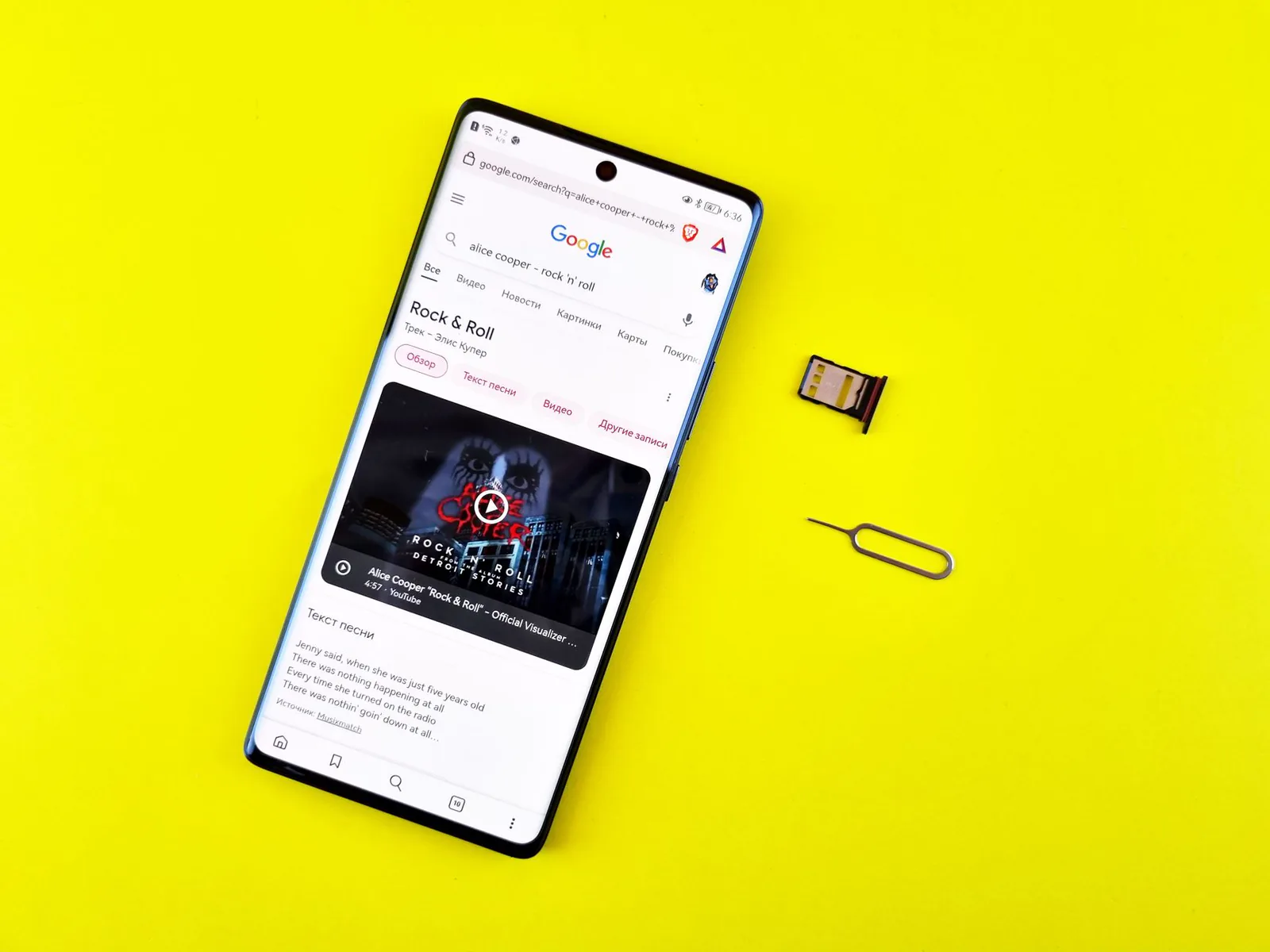
A physical SIM from another carrier is the definitive test — if it connects, the iPhone is unlocked.
Method 3: Ask the Carrier Directly
If the iPhone is yours, the carrier that sold it can tell you its status and eligibility in one call or chat:
- Give them the IMEI — dial *#06# to display it, or find it in Settings → General → About. The carrier looks the lock status up against this number.
- Ask two questions: "Is this device locked to your network?" and "Is it eligible to be unlocked?"
US carriers are committed (under the CTIA's unlock standards) to unlocking phones once contract and installment obligations are met — typically within two business days of eligibility on request. If you're within your obligations, ask them to submit the unlock; once processed, the Carrier Lock setting changes to "No SIM restrictions," sometimes after a restore or a restart.
Method 4: Checks When Buying Used
When you're the buyer, stack these checks before paying:
- Run the SIM test in person — with your own SIM, not the seller's.
- Check the IMEI against a blacklist database (swappa.com/esn or similar) for loss, theft, or outstanding finance flags.
- Confirm Activation Lock is off: on the setup screen the phone must not ask for anyone's Apple ID password. Settings → General → Transfer or Reset iPhone → Erase All Content and Settings, done with the seller present, proves the device is free of the previous owner's iCloud.
- Match the model: Settings → General → About → Model Number tells you the exact iPhone variant — useful because some older models had carrier-specific hardware.
Method 5: Check With Apple Support
If the carrier is unresponsive or you bought the phone from a third party and don't know its origin, Apple Support can look up the device by IMEI or serial number and tell you whether it's locked and, in many cases, to whom. It won't unlock the phone for you — only the locking carrier can do that — but it's a useful second opinion, and it's free via chat.
It's Locked — Now What?
- Ask the original carrier to unlock it. This is the only official route. Meet their requirements (paid-off device, contract complete, account in good standing) and the unlock is free.
- Wait for the confirmation, then finish the job: restart the iPhone, or back it up and restore it, so the unlock takes effect.
- If the carrier refuses because the phone was reported lost/stolen or has unpaid balances tied to the IMEI, walk away from a used purchase — no legitimate workaround exists, and third-party "unlock services" for those cases are scams or worse.
The Bottom Line
Start with Settings → General → About → Carrier Lock: "No SIM restrictions" means you're done. When money is changing hands, back it up with the SIM card test and an IMEI blacklist check. And if the phone turns out to be locked, the original carrier can unlock it for free once its requirements are met — never pay a third party to do it.